
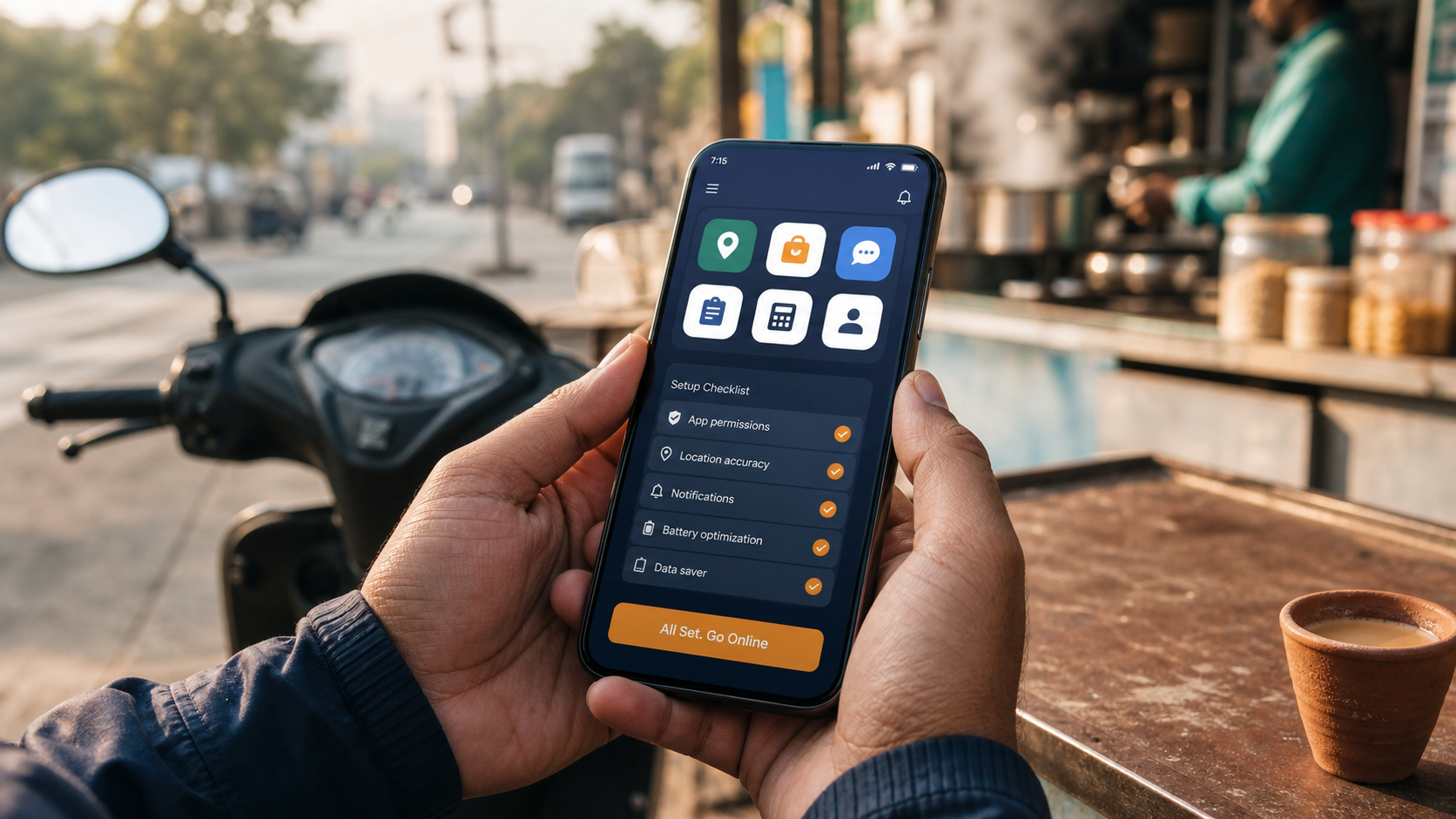
Start with your account and permissions, then save one fare rule and one distance rule. Test while parked before using automation during a shift.
Start with a clean baseline
A useful setup makes it clear which rule is active and why a request matches. Begin with RiderAcceptor, your work app and a working internet connection. Sign in with the account that owns your plan. Check the current plan status before changing automation settings.
Write down your phone model, Android version, RiderAcceptor version and the work app you are testing. If a platform update changes its request screen, those details help explain why behaviour changed.
Set fare and distance rules
- Open the fare filter and enter a minimum and maximum fare. Make sure the minimum is below the maximum, then save the rule.
- Set the maximum distance in ride filters. Check the unit displayed by the app before saving.
- If you use allowed or blocked locations, review the spelling and remove old entries that no longer fit your route.
- Read back the saved values. Do not assume that typing a value also saved it.
A range of ₹100 to ₹500 and a 5 km limit would allow a detected ₹180, 3.2 km request through those two checks. A ₹80 request fails the fare check; a 6 km request fails the distance check. Other active rules can still affect the result.
The filter uses details detected on supported request screens. Do not assume every distance shown by every platform means pickup distance or total trip distance.
Review permissions one at a time
Review ordinary permissions from Android Settings, then Apps, RiderAcceptor, Permissions. Menu wording varies by device. Special access such as accessibility or drawing over other apps may appear elsewhere; use the setting requested by RiderAcceptor and read its explanation before enabling it. Google explains app permission controls.
After changing a setting, return to RiderAcceptor and check its current state. Enabling a permission does not itself confirm that a plan is active or that a platform screen is supported.
Test a single scenario
- Park safely and verify the saved filter values.
- Confirm automation is enabled only when you intend it to act.
- Observe the details shown in an incoming request and compare them with your rules.
- Check the app's last automation information if available.
- Change only one setting before repeating the check.
If the displayed amount or distance is missing, record that fact instead of widening every filter. A parsing or screen-compatibility problem needs a different fix from an intentionally strict rule.
Troubleshoot by symptom
| What you see | Check next |
|---|---|
| No matching rides | Saved fare, distance and location rules; compare them with one observed request. |
| Works only while open | Read the background and battery guide before changing device restrictions. |
| Stopped after an app update | Record both app versions and the changed request screen for support. |
| Plan unavailable | Check the account email and payment status before troubleshooting filters. |
Common questions
Does a matching example prove every ride will be accepted?
No. Screen support, visible request details, permissions and other active filters still matter. The website animation is an illustration, not a performance test.
Should I enable every phone permission?
No. Review the purpose of each requested permission. If you cannot tell why a setting is needed, ask support before changing it.