
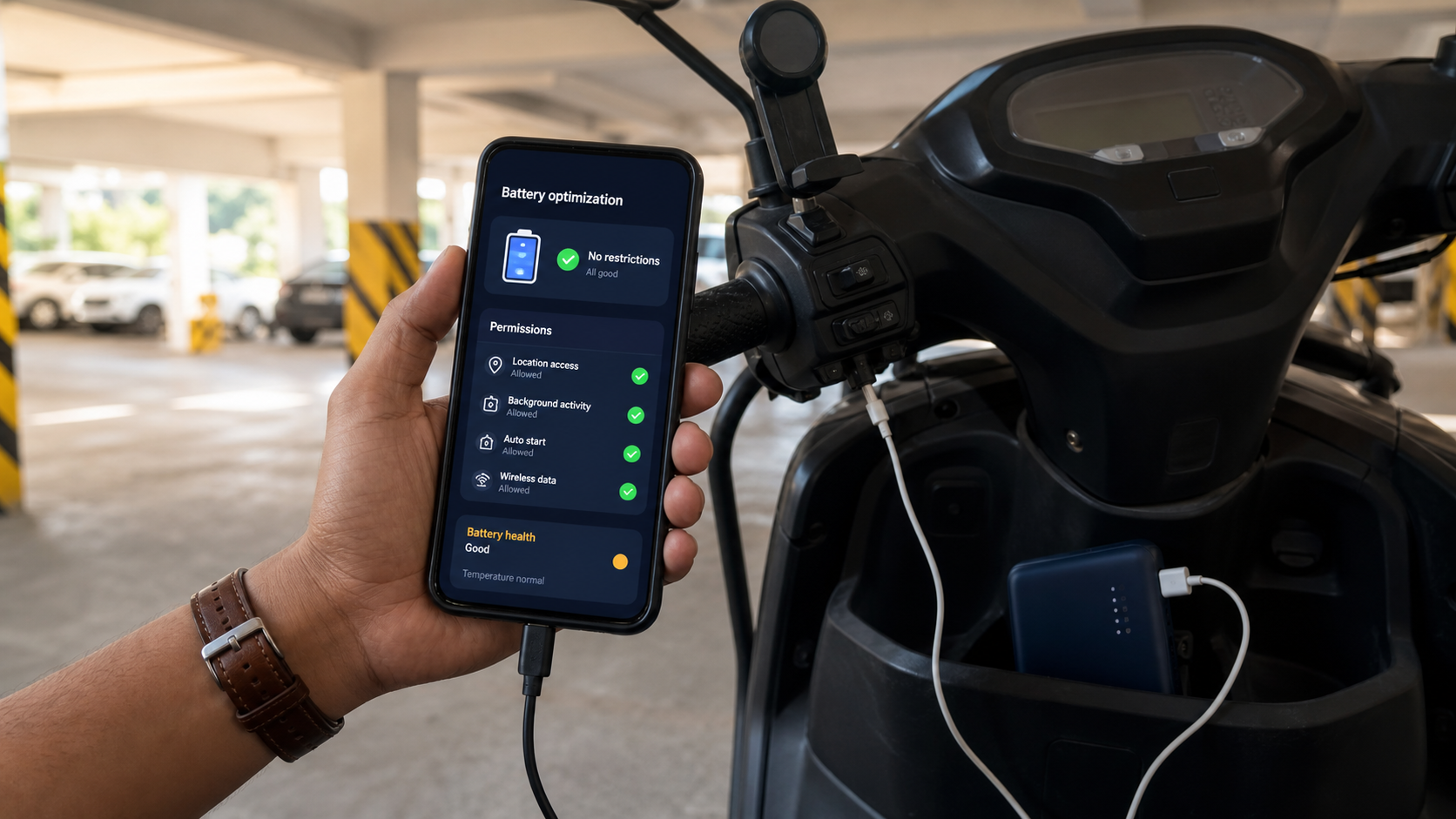
If the app behaves differently after the screen locks, compare one setting at a time. Do not disable every battery protection or clear your app data as a first step.
Describe the failure precisely
There are several different problems that can feel like the app has stopped: a notification arrives late, the screen is not read, the automation service is unavailable, a plan is pending, or the work app is offline. Record what actually changed before adjusting battery settings.
Note whether the problem happens immediately, only after switching apps, or after the screen has been off for a while. Include whether Battery Saver was enabled and whether the phone was charging.
Inspect the relevant controls
Open Android Settings and find RiderAcceptor under Apps. Review its permissions and battery controls. Also check the work app involved. Labels and available options vary by manufacturer and Android version; use your device's own help for exact menu names.
Android can restrict background work for apps, so the result may differ between an app kept open and one left in the background. See Android's background restriction documentation for the underlying behaviour.
Adjust only the setting relevant to the symptom. A broader battery allowance can increase battery usage; it does not establish that the request screen is supported.
Run a controlled comparison
- While parked, open both apps and check the connection and account status.
- Record the result with RiderAcceptor visible.
- Switch to the work app and observe the next relevant event.
- Repeat under the same conditions after changing one setting.
- Restore a setting if it does not help, then record the comparison for support.
"At 10:15, with Battery Saver enabled, the alert appeared only after reopening the app. After changing the relevant battery setting, the next alert appeared while the work app was open." This describes a test; it does not prove battery settings explain every missed request.
Match the symptom to the next check
| Symptom | Useful next check |
|---|---|
| No notification | Notification permission, app settings and whether the work app generated an alert. |
| Notification appears but no action | Automation enabled, special access, detected details and active filters. |
| Works after reopening only | Background settings and a controlled comparison with the screen state recorded. |
| All apps are slow or offline | Connection and overall device condition rather than only RiderAcceptor. |
Keep a recovery record
After a phone update or app reinstall, review the settings the app requires again. Save a short list of changes that previously helped. Avoid clearing app storage as an experiment: it can remove local preferences and require sign-in and setup again.
If the problem continues, send the phone model, Android version, both app versions and your controlled-test notes. Follow the phone manufacturer's guidance if the device reports overheating or battery problems.
Common questions
Should I turn off battery optimization for every app?
No. Focus on the app and symptom you are testing. Broad changes make the cause harder to isolate and can increase power use.
Will unrestricted battery access fix auto-accept?
Not necessarily. Filter rules, permissions, connectivity and changes to the work app screen can independently affect automation.