
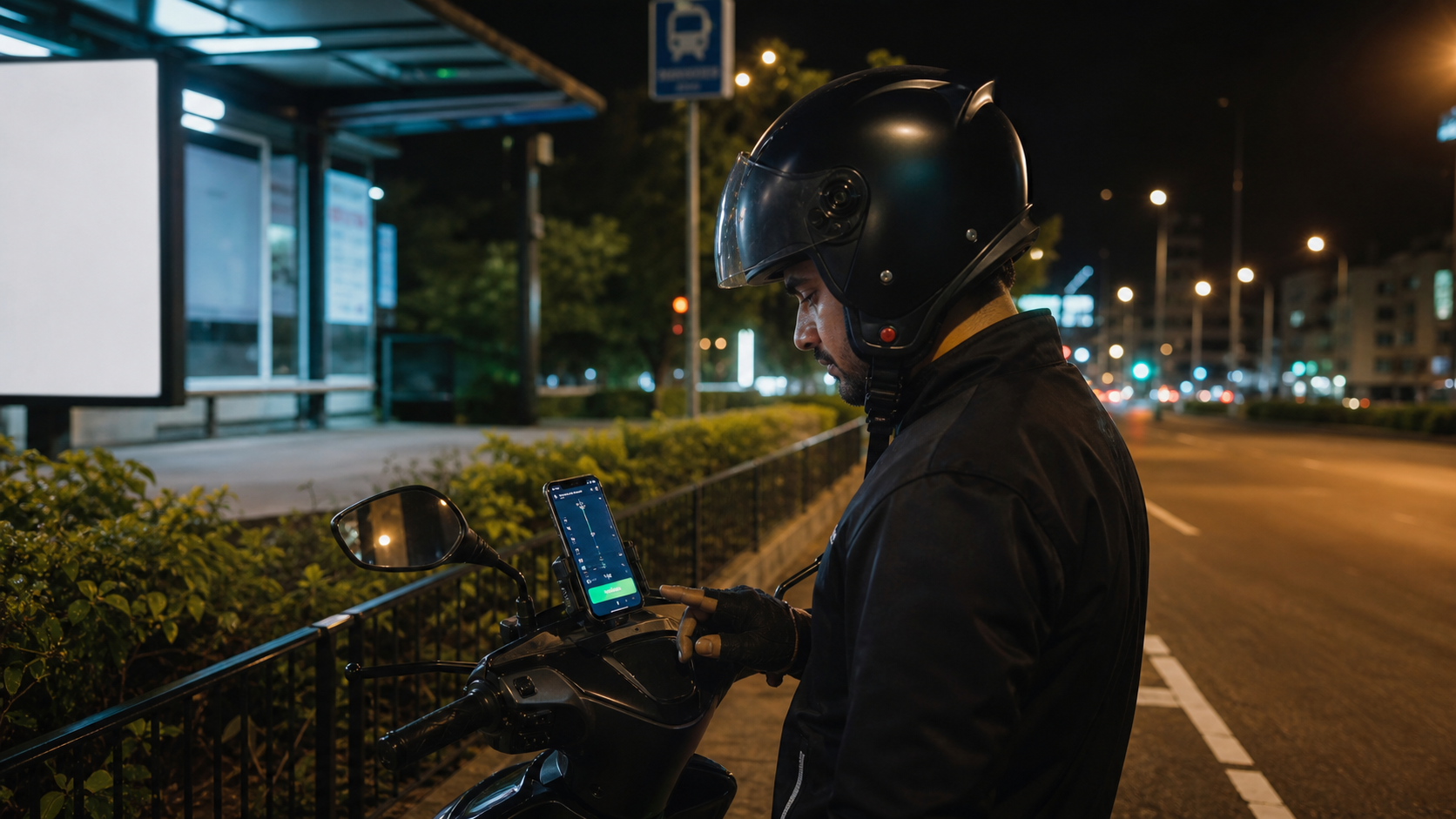
Prepare visibility, charging and your route while safely stopped. During a shift, stop before changing filters, handling payments or troubleshooting the phone.
Before leaving: make the screen predictable
Night work can make a bright display distracting and small text harder to read. Choose a comfortable brightness while stationary and confirm that essential directions and controls remain legible. Test the screen in the actual mount position rather than only while holding it close.
- Check that the mount holds the phone securely and does not obstruct your view.
- Position the charging cable so it does not interfere with controls.
- Open the route and check the destination before moving.
- Confirm internet access, account status and the settings you intend to use.
Set filters before the shift
Review fare and distance rules while parked. Do not widen filters in a hurry simply because few requests appear. A displayed distance does not describe road conditions, lighting, parking or the suitability of a destination.
A request can fit a 5 km rule and your fare range while leading to a route you do not intend to take. Automation evaluates available app details; it is not a route-safety assessment.
If the app supports location rules you use, read them back and remove outdated entries. Check the selected work account and navigation destination separately.
When something changes on the road
If an alert looks wrong, the route changes or the phone becomes difficult to read, find a suitable place to stop before interacting with it. Avoid diagnosing the issue or replying to support while moving.
- Once stopped, identify whether the problem is navigation, app access, connection or automation.
- Check the simplest relevant item first, such as the displayed destination or internet connection.
- Make one change and confirm the result before continuing.
- If the phone remains unreliable, stop depending on that workflow until the issue is resolved.
Keep a practical fallback
Know how to return to the work app and navigation without relying on an overlay. Keep support contact details accessible, but handle non-urgent payment or setup problems after the journey. If the phone reports a temperature or battery warning, follow its instructions rather than trying to keep automation running at all costs.
For intermittent connection problems, record the approximate area and time after stopping. This helps separate a location-specific network issue from an app issue that happens everywhere.
After the shift: review patterns
Write a short note about interruptions: when they happened, which app was visible, whether the phone was charging and the exact message shown. Remove customer names, addresses and unrelated notifications from any screenshot you share.
Use the battery guide for background failures and the payment guide for access problems. Changing unrelated settings between shifts makes it harder to discover the cause. Build a repeatable routine around the checks that actually matter on your phone.
Common questions
Does auto-accept mean I never need to review a request?
No. Automation does not replace your judgement, platform requirements or attention to the route and surrounding conditions.
Should I contact support immediately during a trip?
Handle routine app troubleshooting only after stopping safely. For an emergency, use the appropriate local emergency assistance instead of app support.