
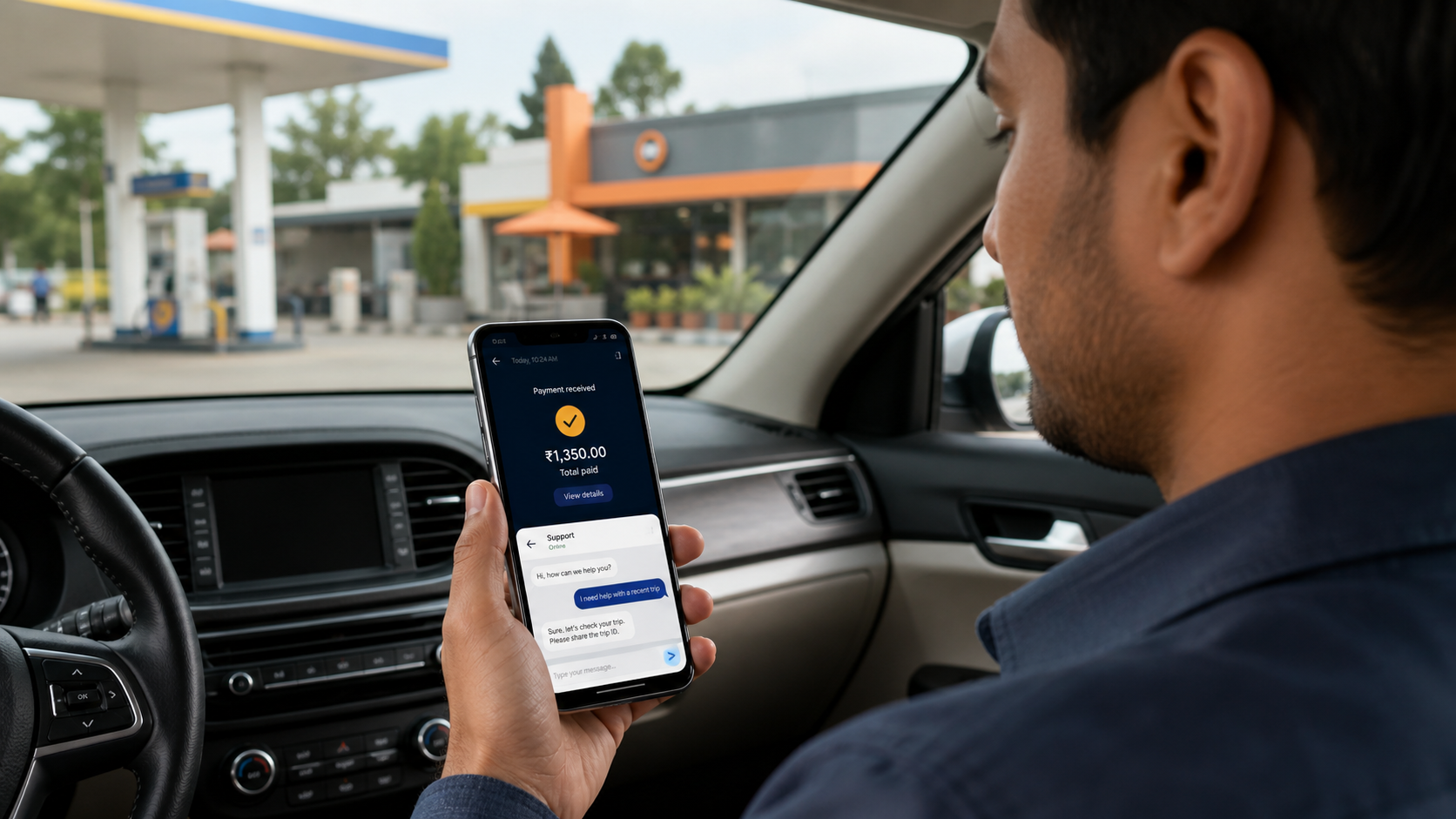
Payment confirmation and plan activation are separate steps. If money was debited, check the same order and contact support with its ID instead of paying again.
Confirm your details before payment
- Select your plan inside RiderAcceptor while signed in.
- On checkout, confirm the plan and amount.
- Enter your full name, signed-in account email and mobile number. Use an email you can access.
- Continue to PhonePe and follow the options on its payment page.
- Return to RiderAcceptor and check the order status.
Your phone number is sent for checkout prefill. It is not proof of ownership of the number, and the payment provider may still ask you to complete its own checks.
Read the status before taking action
| Status or message | What it means | Your next action |
|---|---|---|
| Continue to PhonePe | The order is ready to begin checkout. | Confirm details and proceed once. |
| Resume PhonePe payment | An unpaid order has an existing checkout link. | Resume that order if you have not paid. |
| Waiting for confirmation | Success has not yet been verified. | Check status. A waiting message is not proof of failure. |
| Payment received; activating | Payment is verified but app access is still being updated. | Do not pay again. Recheck or contact support. |
| Plan credited | Activation has completed for that order. | Review access in the app using the same account. |
| Failed or expired | The checkout did not finish successfully in its current state. | If you were debited, ask for review before another payment. |
If PhonePe does not open
First distinguish a missing website page from an unfinished payment. A page saying Page not found is a website availability issue. Capture the page title and contact support; entering different payment details will not repair it.
If the checkout loads but only shows a pending status, check that same order. When Resume PhonePe payment is available, it uses the existing payment link. Old links can expire. A new phone number cannot be inserted into a gateway link that has already been created.
If money left your account
Save the provider's transaction reference, amount and payment time. Keep the RiderAcceptor order ID too: it identifies the app order, while the provider reference identifies the payment. These are different records.
Reopen RiderAcceptor with the same account and check payment status. If the message stays unresolved, send those details through the support page. A bank debit screenshot alone does not establish which account should receive the plan, and no fixed activation time is promised here.
Prepare a useful review request
- Registered account email and selected plan.
- Order ID beginning with RA_, if shown.
- Amount, approximate time and provider transaction reference.
- The exact current checkout or app message.
- Phone model, app version and the steps already tried.
Crop unrelated transactions and balances from screenshots. Never send a password, OTP, UPI PIN or full card details. Refund eligibility is covered by the refund policy; this troubleshooting guide does not promise a refund.
Common questions
Can I close checkout after paying?
Return to the app and check the same order. Closing a page is not itself a cancellation or proof of success.
Can support identify me using only my phone number?
Include the signed-in email and order ID. A number alone can be insufficient to match an account and transaction reliably.